Why Google Ignores Your Blog Posts (And How Article Schema Markup Fixes It)
This article targets bloggers and content creators who have added article schema to their websites but are not seeing any improvement in search visibility or rich results. The user is frustrated that their content is not getting recognized by Google as structured data and wants a clear, practical fix. The intent is to understand what went wrong and how to generate valid article schema markup quickly using a free online tool.
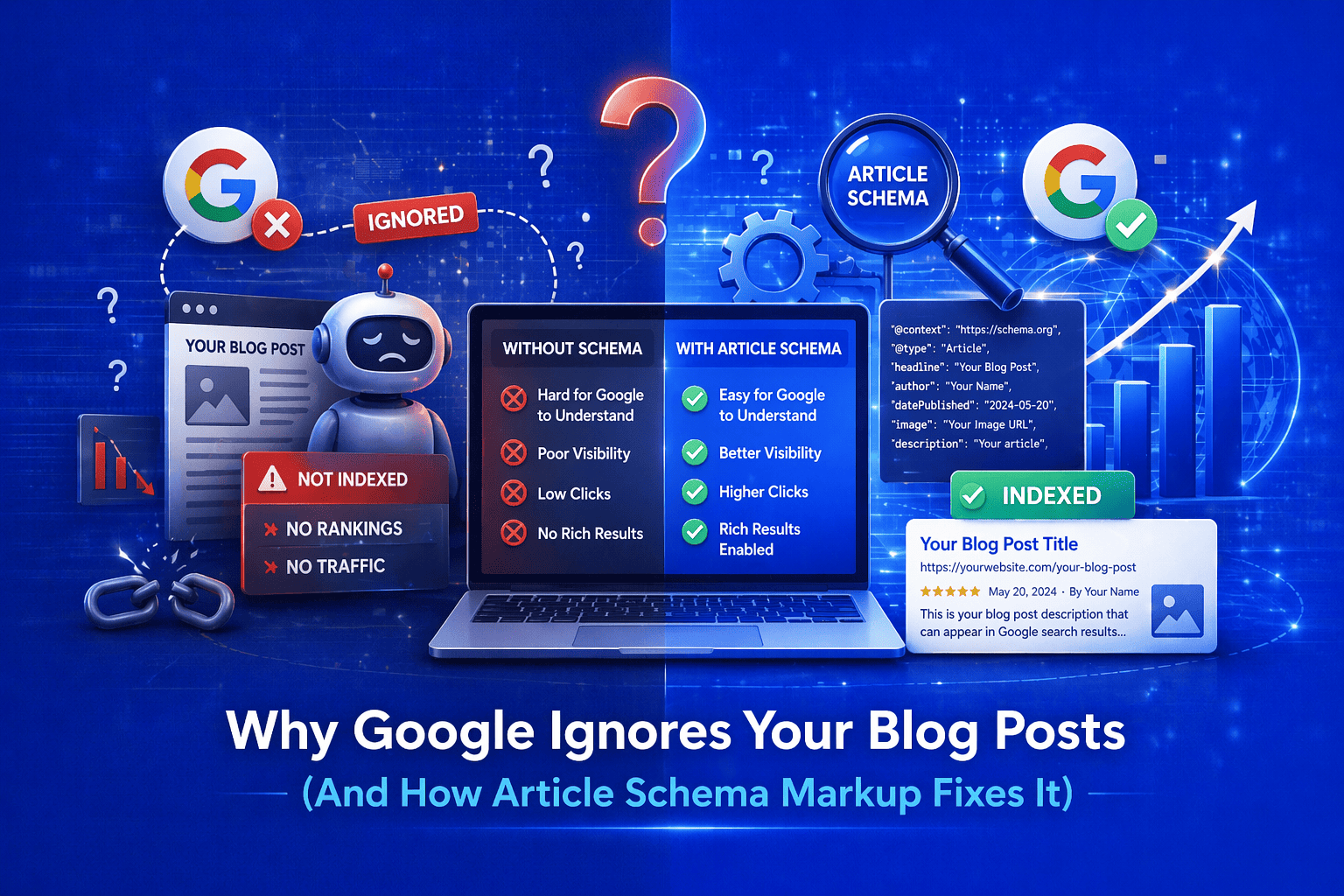
You Added Schema Markup to Your Blog. Google Still Doesn't Care. Here's Why.
You spent hours writing a solid blog post. You added article schema somewhere in your code. You waited. And Google still shows nothing. No rich snippet. No enhanced result. Just a plain blue link buried on page three.
This is one of the most common frustrations bloggers and content marketers face. The markup looks fine to you. But Google sees something different. The fix is simpler than you think, and you do not need to be a developer to get it right.
What Actually Causes Article Schema to Break
Most people assume schema markup is working just because they pasted something into their site. But there are several silent errors that break it entirely.
| Cause | What It Means |
| Missing required fields | Google needs headline, author, and datePublished at minimum |
| Wrong schema type used | Using WebPage instead of Article or NewsArticle |
| Malformed JSON-LD | A missing bracket or comma breaks the entire script |
| Schema placed in wrong location | The markup must live in the <head> or directly in the page body |
| Conflicting duplicate markup | Two schema blocks on one page confuse crawlers |
| Outdated property names | Using deprecated properties that Google no longer reads |
Any one of these issues will silently prevent your article from being eligible for rich results. Google does not warn you. It just skips your content.
How to Fix Article Schema the Right Way
The fastest way to generate clean, valid article schema is to use a dedicated tool. The Article Schema Generator at EveryWebTool lets you fill in your article details and instantly outputs ready-to-use JSON-LD code. No signup. No cost. No coding required.
Here is the process, step by step:
- Open the Article Schema Generator tool
- Enter your article headline exactly as it appears on the page
- Add your article description (a short summary, around 150 characters)
- Enter the full URL of the article
- Add the published date and the modified date
- Enter the author name and your website or organization name
- Add the URL of the featured image or article thumbnail
- Click Generate and copy the JSON-LD output
- Paste the code inside a
<script type="application/ld+json">tag in your page's<head>section - Validate the output using Google's Rich Results Test
That is the complete process. Most people skip steps 4, 5, or 7, which are all required by Google.
Real Example: What Valid Article Schema Looks Like
Say you have a blog post titled "10 Beginner Sourdough Mistakes to Avoid" published on April 10, 2025. Here is what the generated schema would look like after using the tool:
<script type="application/ld+json">
{
  "@context": "https://schema.org",
  "@type": "Article",
  "headline": "10 Beginner Sourdough Mistakes to Avoid",
  "description": "A practical guide to the most common sourdough mistakes beginners make and how to fix them.",
  "url": "https://yourblog.com/sourdough-mistakes",
  "datePublished": "2025-04-10",
  "dateModified": "2025-04-10",
  "author": {
    "@type": "Person",
    "name": "Sarah Collins"
  },
  "publisher": {
    "@type": "Organization",
    "name": "Your Blog Name",
    "logo": {
      "@type": "ImageObject",
      "url": "https://yourblog.com/logo.png"
    }
  },
  "image": {
    "@type": "ImageObject",
    "url": "https://yourblog.com/images/sourdough-cover.jpg"
  }
}
</script>
This is clean. It has all the fields Google looks for. The tool generates this automatically when you fill in the form fields correctly.
Troubleshooting Common Article Schema Errors
Google Rich Results Test Shows "No Items Detected"
This usually means the JSON-LD block was placed in the wrong location or the script tag was formatted incorrectly. Double-check that the script tag reads exactly <script type="application/ld+json"> and that it is closed with </script>. Placing it in a sidebar widget or inside a custom JavaScript file will not work.
The Schema Validates But Still No Rich Snippet Appears
Validation and eligibility are two different things. Google validates whether the code is readable. Eligibility for rich results depends on additional factors like content quality, page experience signals, and whether your content matches what the schema claims. Make sure your article actually contains the information declared in the markup.
"Missing Field: author" Error in Search Console
This is one of the most flagged errors in Google Search Console for article schema. Many generators skip the author block entirely. The Article Schema Generator at EveryWebTool includes the author field by default. Go back and regenerate your schema with the author name filled in.
Image Property Causes Validation Warning
Google recommends that your article image be at least 1200px wide for optimal display. If you used a small thumbnail or a compressed mobile image, replace it with a larger version and update the schema URL. The image URL must also be publicly accessible, not behind a login or CDN restriction.
Schema Appears Twice on the Page
If you use an SEO plugin like Yoast or Rank Math alongside manually added schema, you may end up with duplicate article schema. This confuses Google. Either disable the plugin's schema output for that page type or remove your manual code and let the plugin handle it.
Mistakes Beginners Make With Article Schema
- Generating schema once and never updating the
dateModifiedfield after editing the post - Using the
BlogPostingtype when Google specifically looks forArticleorNewsArticlefor most content - Pasting schema into the post editor instead of the page
<head>or a proper script block - Adding schema to pages where it does not apply, like contact forms or category archive pages
- Copying schema from another website without changing the URL, author, or date fields
- Not testing the markup with Google's Rich Results Test after adding it
Each of these mistakes is avoidable. The tool generates the correct type and structure automatically. Your main job is to fill in accurate information.
Who Benefits From Using This Tool
Article schema is not just for big publishers. It helps anyone publishing content that they want Google to understand and surface more effectively.
| User Type | How They Use It |
|---|---|
| Bloggers | Add schema to individual posts to improve search appearance |
| News sites | Mark up time-sensitive articles for Google News eligibility |
| Ecommerce stores with blogs | Improve organic visibility for product guides and tutorials |
| Digital marketers | Implement schema for clients without needing developer support |
| Developers | Generate base schema quickly and customize from there |
| Freelance writers | Add value to content deliverables by including valid schema |
Try the Tool and See the Difference
If your articles are not getting the visibility they deserve, the problem might not be your writing. It might be that Google simply cannot read what your content is about.
The Article Schema Generator takes about two minutes to use. Fill in your article details, copy the generated code, and add it to your page. Then test it with Google's Rich Results Test to confirm everything is working.
It is free, requires no signup, and gives you clean, validated schema every time.
Share this article:
Frequently Asked Questions
Yes. The Article Schema Generator at EveryWebTool does not store your data or require an account. It simply takes the information you provide, formats it into valid JSON-LD code, and returns it to you. Nothing is saved on their servers. You can review the generated code before adding it to your website.
Validation only confirms that the code is readable. Google has additional eligibility criteria for displaying rich results, including content quality, page experience, and whether the schema accurately reflects the actual content on the page. Schema is a signal, not a guarantee. Focus on content accuracy and quality alongside valid markup.
Yes. After generating the schema code, you can paste it into your WordPress theme's header using a plugin like Insert Headers and Footers, or directly into your theme's functions.php file using wp_head. Avoid pasting it into the post content editor, as WordPress may strip or escape the script tag.
These are all subtypes of the Article schema on Schema.org. Article is the broadest and works for most content. BlogPosting is for informal blog content and is accepted by Google but treated with less authority than Article. NewsArticle is specifically for news publishers and may qualify for Google News inclusion. For most bloggers, Article is the right choice.
Update the dateModified field every time you make meaningful changes to the article content. Google values freshness, especially for topics that change over time. Some sites update this field even for small edits, but a general rule is to update it whenever you add or revise a significant section of the post.
Google periodically updates its requirements for structured data eligibility. If your schema was working and then stopped, check Google Search Console for new errors or warnings under the Enhancements section. Common recent changes include stricter image size requirements and updated author markup expectations. Regenerate your schema using an up-to-date tool and revalidate it.

Related Articles
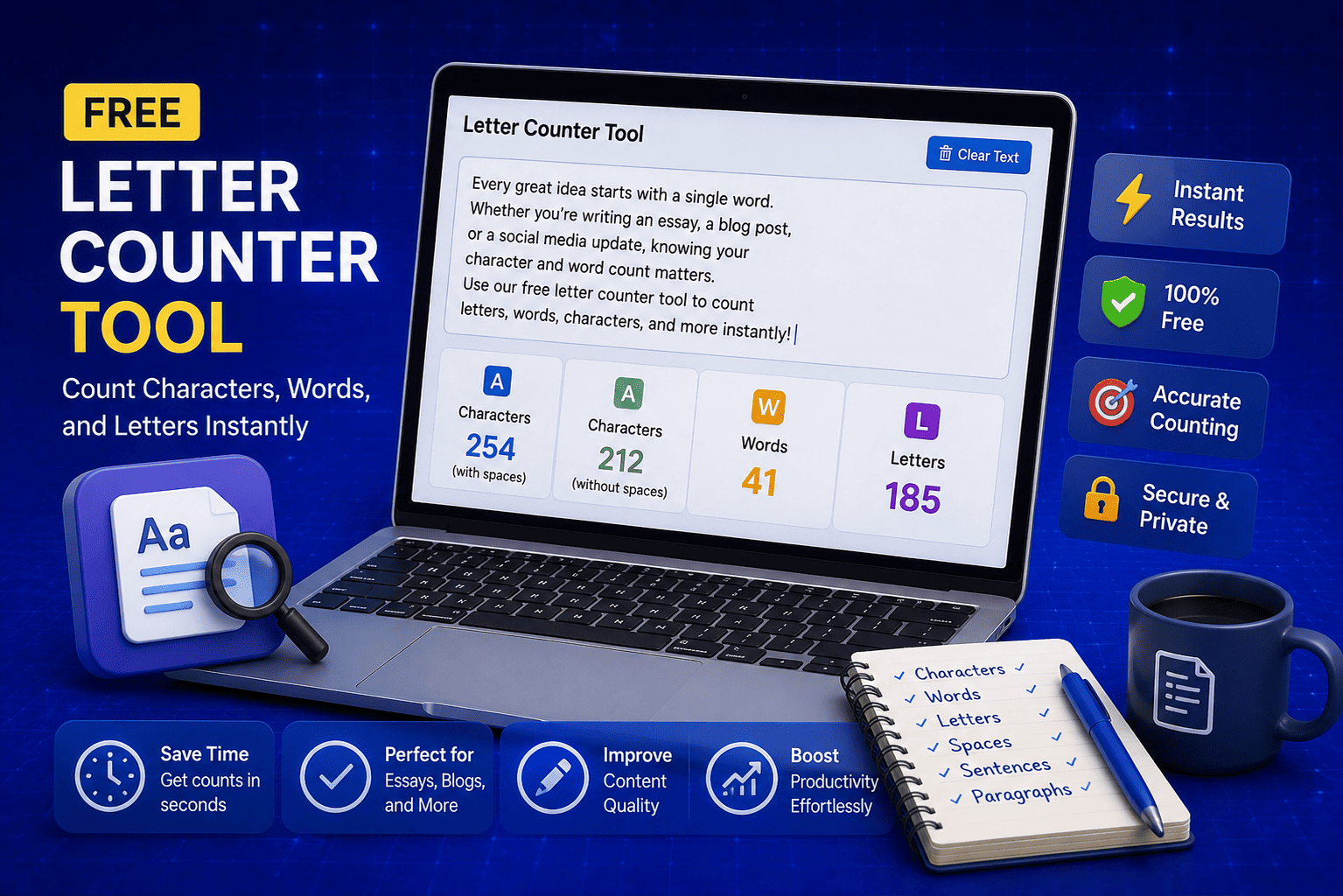
Free Letter Counter Tool: How to Count Characters, Words, and Letters Instantly
Most people do not think about character counts until they absolutely have to. Your tweet gets rejected for being too long. Your Meta description gets cut off in Google search results. Your college application essay goes over the limit and you have no idea by how much. These are the moments when a free letter counter tool becomes genuinely useful. The good news is you do not need a complicated piece of software or a paid subscription to count letters, characters, and words accurately. A free online tool does it all instantly, in real time, right in your browser. In this guide, I am going to show you exactly what a letter counter tool does, who needs it, and how to use it to get accurate text statistics in seconds.
Read Article
How to Check Your Domain DNS Health for Free and Fix Issues Fast
Most website owners set up their domain once and never look at the DNS settings again. Everything seems fine until emails stop delivering, the website goes down after a hosting change, or Google flags the domain for missing security records. By that point the damage is already done. A quick domain DNS health check takes less than thirty seconds and tells you exactly whether your DNS records are correctly configured or quietly causing problems you have not noticed yet. In this guide I am going to show you exactly how to run a free DNS health check on any domain, what the results mean, and what to do if something needs fixing.
Read Article
How to Create a Fake Instagram Post Online Without Any App or Software
If you have ever searched for a way to create a fake Instagram post online, you already know how hard it is to find a tool that actually works well. Most options are either too complicated, full of watermarks, or ask you to download software you never wanted in the first place. The good news is you do not need any of that. A free online fake Instagram post generator lets you create a realistic looking Instagram post right in your browser, in under two minutes, with no app, no login, and no design skills required. Whether you need it for a school project, a marketing mockup, or just for fun with friends, this guide will show you exactly how to do it step by step.
Read Article