
Free Letter Counter Tool: How to Count Characters, Words, and Letters Instantly
Most people do not think about character counts until they absolutely have to. Your tweet gets rejected for being too long. Your Meta description gets cut off in Google search results. Your college application essay goes over the limit and you have no idea by how much. These are the moments when a free letter counter tool becomes genuinely useful. The good news is you do not need a complicated piece of software or a paid subscription to count letters, characters, and words accurately. A free online tool does it all instantly, in real time, right in your browser. In this guide, I am going to show you exactly what a letter counter tool does, who needs it, and how to use it to get accurate text statistics in seconds.
What Is a Letter Counter Tool?
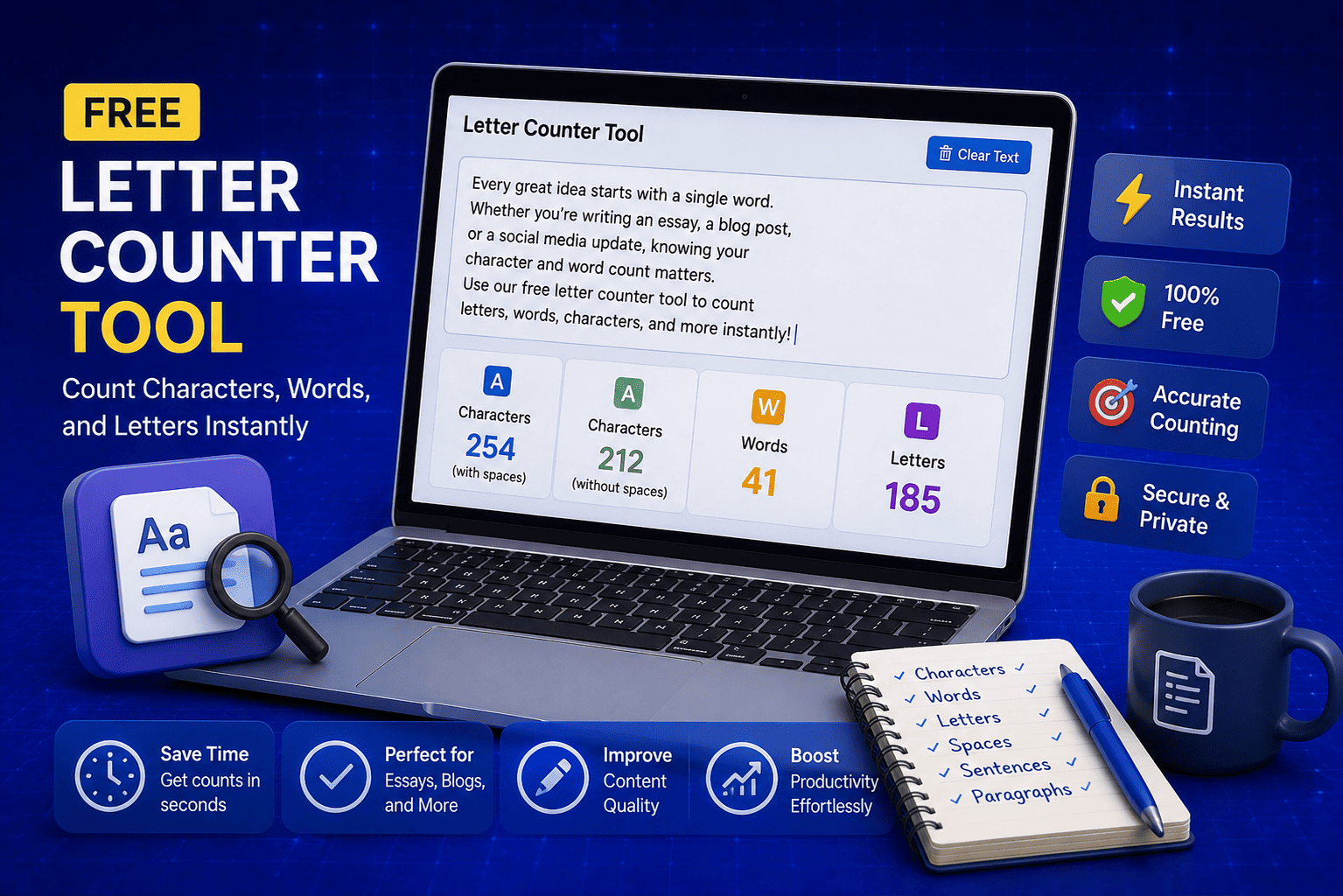
A letter counter tool is a free online utility that analyzes any piece of text and instantly tells you how many letters, characters, words, sentences, lines, and paragraphs it contains. You paste or type your text and the tool does all the counting for you in real time without any delay.
What makes a good letter counter tool different from simply eyeballing your text is the level of detail it provides. It does not just give you a single number. It breaks down your text into multiple statistics that are genuinely useful, depending on what you are working on.
I built the free Letter Counter tool on EveryWebTool to give writers, students, marketers, and developers a single place to get all their text statistics instantly without needing to sign up, install anything, or pay for a subscription.
Here is what the tool analyzes for you:
- Total character count including spaces
- Character count without spaces
- Total word count
- Total letter count
- Total sentence count
- Total line count
- Total paragraph count
- Letter frequency analysis showing how often each letter appears in your text
All of these statistics update in real time as you type or paste text making it one of the fastest and most complete free text analysis tools available online.
What Does a Free Letter Counter Tool Actually Count?
This is a question I get asked quite often and it is worth explaining clearly because a lot of people assume a letter counter only counts letters. The reality is a good free letter counter tool is a complete text analysis tool that gives you a full breakdown of every measurable element inside your text.
Understanding what each count means helps you use the results more effectively for whatever task you are working on. Here is a detailed breakdown of everything the tool counts and why each one matters:
|
What It Counts |
What It Means |
Why It Matters |
|
Characters with spaces |
Total count of every character including spaces |
Used by platforms like Twitter and Google Ads for limits |
|
Characters without spaces |
Total count excluding all spaces |
Useful when platforms count only non-space characters |
|
Word count |
Total number of individual words in your text |
Essential for essays, blog posts, and content briefs |
|
Letter count |
Only alphabetical letters, no numbers or symbols |
Useful for language analysis and spelling exercises |
|
Sentence count |
Total number of complete sentences |
Helps measure readability and writing complexity |
|
Line count |
Total number of lines in your text |
Useful for code documentation and formatted content |
|
Paragraph count |
Total number of paragraphs |
Helps writers structure long form content correctly |
|
Letter frequency |
How many times each letter appears |
Useful for cryptography, language learning, and text analysis |
One thing worth pointing out is the difference between character count and letter count because these two are frequently confused. Character count includes absolutely everything in your text including spaces, numbers, punctuation marks, and symbols. Letter count only includes alphabetical letters from A to Z. Both are useful but for different purposes and having both available in one tool saves a lot of time.
Who Needs a Letter Counter Tool and Why
When I first built the letter counter tool I expected it to be used mostly by developers and content writers. What surprised me was how wide the actual user base turned out to be. From school students checking essay word counts to Google Ads specialists counting headline characters, the tool serves a much broader audience than most people initially expect.
Here is a clear breakdown of who uses a free letter counter tool and exactly why they need it:
|
User Type |
How They Use It |
What They Count |
|
Content writers and bloggers |
Check post length before publishing |
Word count, character count |
|
SEO professionals |
Optimize meta titles and descriptions |
Characters with and without spaces |
|
Social media managers |
Stay within platform character limits |
Characters for tweets, captions, and posts |
|
Students and academics |
Meet essay and assignment word requirements |
Word count, paragraph count |
|
Google Ads specialists |
Write headlines and descriptions within limits |
Character count per field |
|
Email marketers |
Optimize subject lines for inbox display |
Characters with spaces |
|
Developers and programmers |
Validate string lengths and input fields |
Character count without spaces |
|
Teachers and educators |
Analyze student writing for length and structure |
Word count, sentence count, paragraph count |
|
Language learners |
Study letter frequency and text patterns |
Letter frequency analysis |
|
E-commerce managers |
Write product descriptions within platform limits |
Character count with spaces |
What all of these users have in common is a need for accurate, instant text statistics without the friction of installing software or paying for a tool. The free Letter Counter tool on EveryWebTool.com serves every single one of these use cases in one place with no sign up and no cost involved.
How to Count Letters Characters and Words Online (Step by Step)
This is the part that takes less time to do than it does to explain. The free Letter Counter tool on EveryWebTool.com is designed to give you instant results with absolutely no technical knowledge required. Here is exactly how to use it from start to finish.
Step 1: Open the Free Letter Counter Tool
Go to the free Letter Counter tool on EveryWebTool.com. No account needed, no email required, no sign-up form to fill in. The tool loads instantly in your browser and works on every device, including smartphones, tablets, and desktop computers.
Step 2: Paste or Type Your Text
Click inside the text area and either type your content directly or paste it from your clipboard. The tool accepts text in any language and any format. You can paste a blog post, an essay, a social media caption, a product description, an email subject line, or any other piece of text you need to analyze.
If you want to clean up your text before counting, the Multiple Whitespace Remover on EveryWebTool.com removes extra spaces from your text in one click before you paste it into the counter.
Step 3: Read Your Text Statistics Instantly
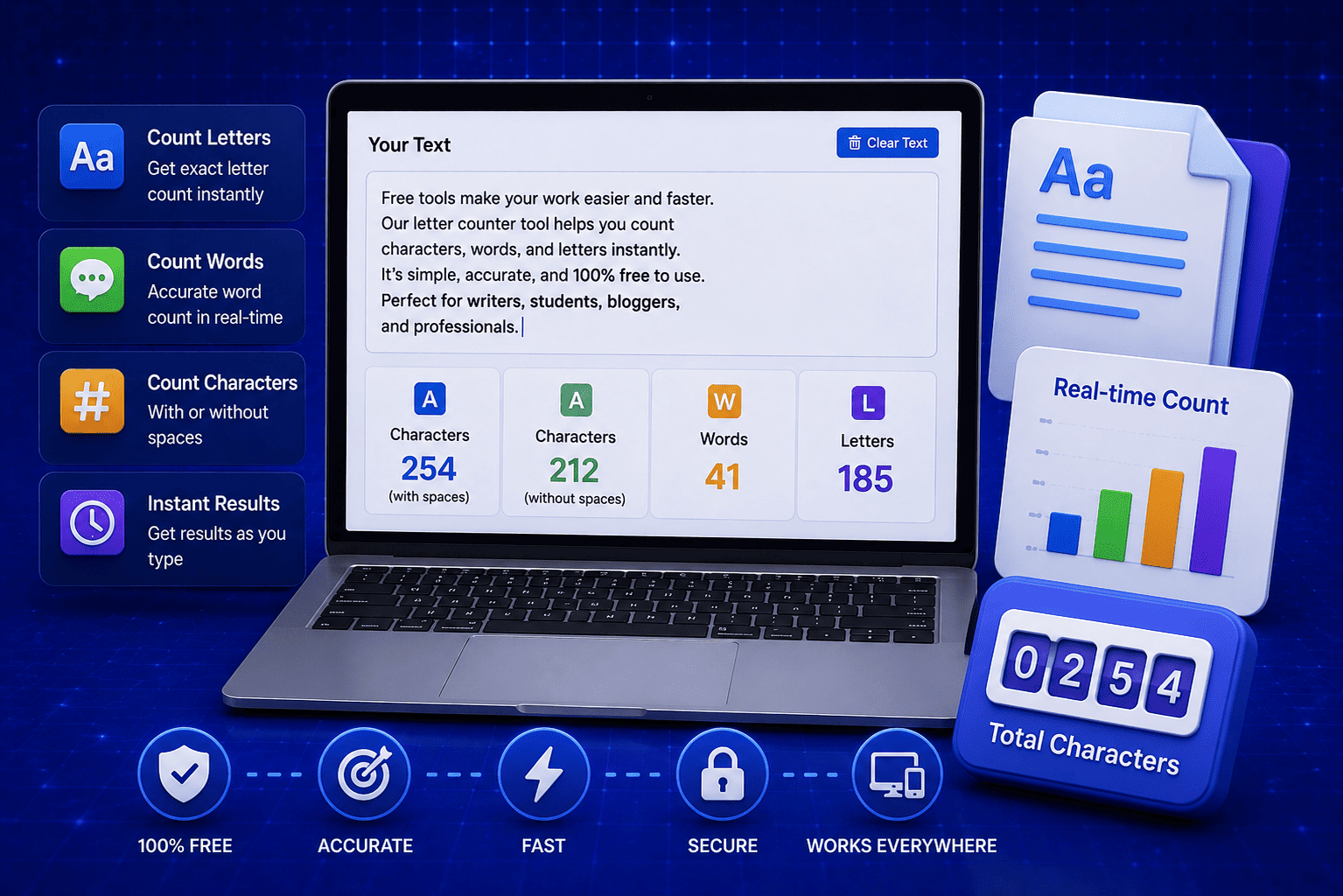
The moment you start typing or paste your text, the statistics panel updates in real time. You do not need to click any button or wait for a result to load. Here is what you will see displayed immediately:
- Letters: Total alphabetical letter count only
- Words: Total number of individual words
- Sentences: Total number of complete sentences in your text
- Characters with spaces: Full character count including every space
- Characters without spaces: Character count with all spaces removed
- Lines: Total number of lines
- Paragraphs: Total number of paragraphs
- Letter frequency: A breakdown of how often each letter appears
Step 4: Use the Results for Your Specific Need
Once you have your statistics, here is how to apply them based on what you are working on:
- Writing a tweet: Check your character count with spaces and keep it under 280
- Optimizing a meta description: Keep your character count under 160 for clean Google display
- Writing a meta title: Keep your character count under 60 to avoid truncation in search results
- Submitting an essay: Check your word count matches the required minimum or maximum
- Writing a Google Ads headline: Keep each headline under 30 characters
- Crafting an email subject line: Aim for under 60 characters for best inbox display across all email clients
Character Limits You Need to Know in 2026
One of the most practical uses of a free letter counter tool is checking your text against the character limits of the platforms and formats you write for every day. The problem is most people either guess these limits from memory or find out they have exceeded them only after hitting publish or submit.
I put this reference table together because I wanted one clear place where writers, marketers, students, and developers could check every important character limit without having to search across multiple websites. Keep this bookmarked and come back to it every time you need a quick reference.
|
Platform or Content Type |
Character Limit |
Notes |
|
Twitter / X post |
280 characters |
Hard limit, post gets rejected if exceeded |
|
Twitter / X username |
15 characters |
Hard limit set by the platform |
|
Instagram caption |
2,200 characters |
Truncated after 125 characters in feed view |
|
Instagram username |
30 characters |
Hard limit set by the platform |
|
LinkedIn post |
3,000 characters |
Truncated after 210 characters in feed |
|
LinkedIn article title |
150 characters |
Recommended limit for clean display |
|
Facebook post |
63,206 characters |
Practically unlimited but shorter performs better |
|
YouTube video title |
100 characters |
Truncated after 70 characters in search results |
|
YouTube description |
5,000 characters |
First 157 characters show in search results |
|
Meta title for SEO |
60 characters |
Gets cut off in Google search results beyond this |
|
Meta description for SEO |
160 characters |
Gets cut off in Google search results beyond this |
|
Google Ads headline |
30 characters |
Hard limit per headline field |
|
Google Ads description |
90 characters |
Hard limit per description field |
|
Email subject line |
60 characters |
Truncated on most email clients beyond this |
|
SMS text message |
160 characters |
Single SMS limit before splitting into multiple |
Every single one of these limits is something you can check instantly using the free Letter Counter tool on EveryWebTool.com. Paste your text, check the character count, and know immediately whether you are within the limit before you publish or submit anything.
Letter Counter vs Word Counter: What Is the Difference?
This is one of the most common questions I come across from people who are new to text analysis tools. On the surface both tools seem to do the same thing but they actually serve different purposes and give you different types of information about your text.
A word counter focuses on the total number of words in your text. It is primarily used by writers, students, and content creators who need to meet specific word count requirements for essays, blog posts, articles, and reports. A letter counter goes deeper than that. It analyzes individual characters, letters, sentences, paragraphs, and even the frequency of each letter across your entire text.
Here is a side by side comparison to make the difference completely clear:
|
Feature |
Letter Counter |
Word Counter |
|
Counts total words |
Yes |
Yes |
|
Counts total characters with spaces |
Yes |
Rarely |
|
Counts total characters without spaces |
Yes |
Rarely |
|
Counts individual letters only |
Yes |
No |
|
Counts sentences |
Yes |
Sometimes |
|
Counts paragraphs |
Yes |
Sometimes |
|
Counts lines |
Yes |
No |
|
Letter frequency analysis |
Yes |
No |
|
Best for social media character limits |
Yes |
No |
|
Best for essay word requirements |
Yes |
Yes |
|
Best for SEO meta tag optimization |
Yes |
No |
As you can see a letter counter is actually a more complete text analysis tool than a standard word counter. It covers everything a word counter does and goes significantly further. For anyone working across multiple content formats including social media posts, SEO content, academic writing, and professional communications, a letter counter is the more versatile choice every single time.
If you need to generate sample text to practice with, the Lorem Ipsum Generator on EveryWebTool.com creates placeholder text of any length instantly which you can then paste directly into the letter counter to test your character and word counts.
Practical Tips to Get the Most Out of a Letter Counter Tool
Knowing how to use a letter counter tool is one thing. Knowing how to use it smartly to save time and produce better content is another. Over the years I have picked up a handful of habits that make a real difference when working with text across different platforms and content types.
Here are the most practical tips I recommend to anyone using a free letter counter tool regularly:
- Always count before you finalize: Make it a habit to run every piece of content through the letter counter before you submit, publish, or send it. This one habit alone eliminates the frustration of last minute rewrites caused by character limit surprises.
- Use character count without spaces for coding: When validating string lengths for database fields or input validation in programming, always use the character count without spaces figure. Most database field limits count only non-space characters.
- Check your Meta tags every single time: Before publishing any blog post or web page, paste your Meta title and Meta description into the letter counter separately. Meta titles should stay under 60 characters and Meta descriptions under 160 characters for clean Google display every time.
- Count your email subject lines before sending: An email subject line that gets cut off at the wrong word loses its entire meaning. Keep subject lines under 60 characters and use the letter counter to verify before every campaign send.
- Use letter frequency for language learning: If you are learning a new language, paste a paragraph of native text into the letter counter and study the letter frequency breakdown. It gives you a clear picture of which letters and sounds appear most often in that language.
- Clean your text before counting: If your text has extra spaces or formatting issues, run it through the Multiple Whitespace Remover first. Extra spaces inflate your character count and give you inaccurate results.
- Use the word count for content briefs: When working with freelance writers or content teams, always specify both a word count range and a character limit for headlines and Meta tags. Paste the final content into the letter counter to verify compliance before approval.
- Combine tools for better results: For developers writing code documentation, use the Camel Case Converter to format your variable names correctly and then run the full documentation through the letter counter to check overall text length and structure.
Final Thoughts
Counting letters, characters, and words manually is one of those tasks that sounds simple until you are doing it under pressure with a deadline approaching. Whether you are optimizing a meta description for SEO, staying within a Twitter character limit, hitting an essay word count, or validating a string length for a development project, having a reliable free tool that gives you accurate results instantly makes the whole process faster and far less stressful.
The free Letter Counter tool on EveryWebTool.com gives you a complete text statistics breakdown in real time with no sign up, no cost, and no unnecessary steps between you and your results. Paste your text, read your numbers, and get back to what you were working on.
Share this article:
Frequently Asked Questions
Paste your text into the free Letter Counter tool on EveryWebTool.com and the tool automatically displays both character count with spaces and character count without spaces in real time. No extra steps or settings required. The result updates instantly as you type or paste your content.
Yes, absolutely. The letter counter tool is one of the most practical tools for social media managers and content creators. Paste your tweet, Instagram caption, LinkedIn post, or any other social media content into the tool and check your character count instantly against the platform limit before you publish.
Yes, the tool is completely free to use with no sign up, no login, and no registration of any kind required. Simply open the free text tools section on EveryWebTool.com, click the Letter Counter, paste your text, and get your results immediately.
Character count includes every element in your text including spaces, numbers, punctuation marks, and special symbols. Letter count only includes alphabetical letters from A to Z and excludes everything else. Both counts are displayed automatically by the tool so you always have the right number for whichever platform or requirement you are working with.

Related Articles

How to Check Your Domain DNS Health for Free and Fix Issues Fast
Most website owners set up their domain once and never look at the DNS settings again. Everything seems fine until emails stop delivering, the website goes down after a hosting change, or Google flags the domain for missing security records. By that point the damage is already done. A quick domain DNS health check takes less than thirty seconds and tells you exactly whether your DNS records are correctly configured or quietly causing problems you have not noticed yet. In this guide I am going to show you exactly how to run a free DNS health check on any domain, what the results mean, and what to do if something needs fixing.
Read Article
How to Create a Fake Instagram Post Online Without Any App or Software
If you have ever searched for a way to create a fake Instagram post online, you already know how hard it is to find a tool that actually works well. Most options are either too complicated, full of watermarks, or ask you to download software you never wanted in the first place. The good news is you do not need any of that. A free online fake Instagram post generator lets you create a realistic looking Instagram post right in your browser, in under two minutes, with no app, no login, and no design skills required. Whether you need it for a school project, a marketing mockup, or just for fun with friends, this guide will show you exactly how to do it step by step.
Read Article
How to Estimate Your Road Trip Fuel Cost before You Leave Home
Road trips are exciting until you check your wallet halfway through and realize you completely underestimated how much fuel was going to cost you. I have been there and it is not a great feeling when you are three hours from home with an empty tank and an even emptier budget. The smart move is to calculate your fuel cost before you even start the engine. It takes less than two minutes, you do not need any special knowledge, and a free online tool does all the math for you. In this guide I am going to show you exactly how to estimate your road trip fuel cost accurately so you can plan your budget with confidence and actually enjoy the drive.
Read Article