
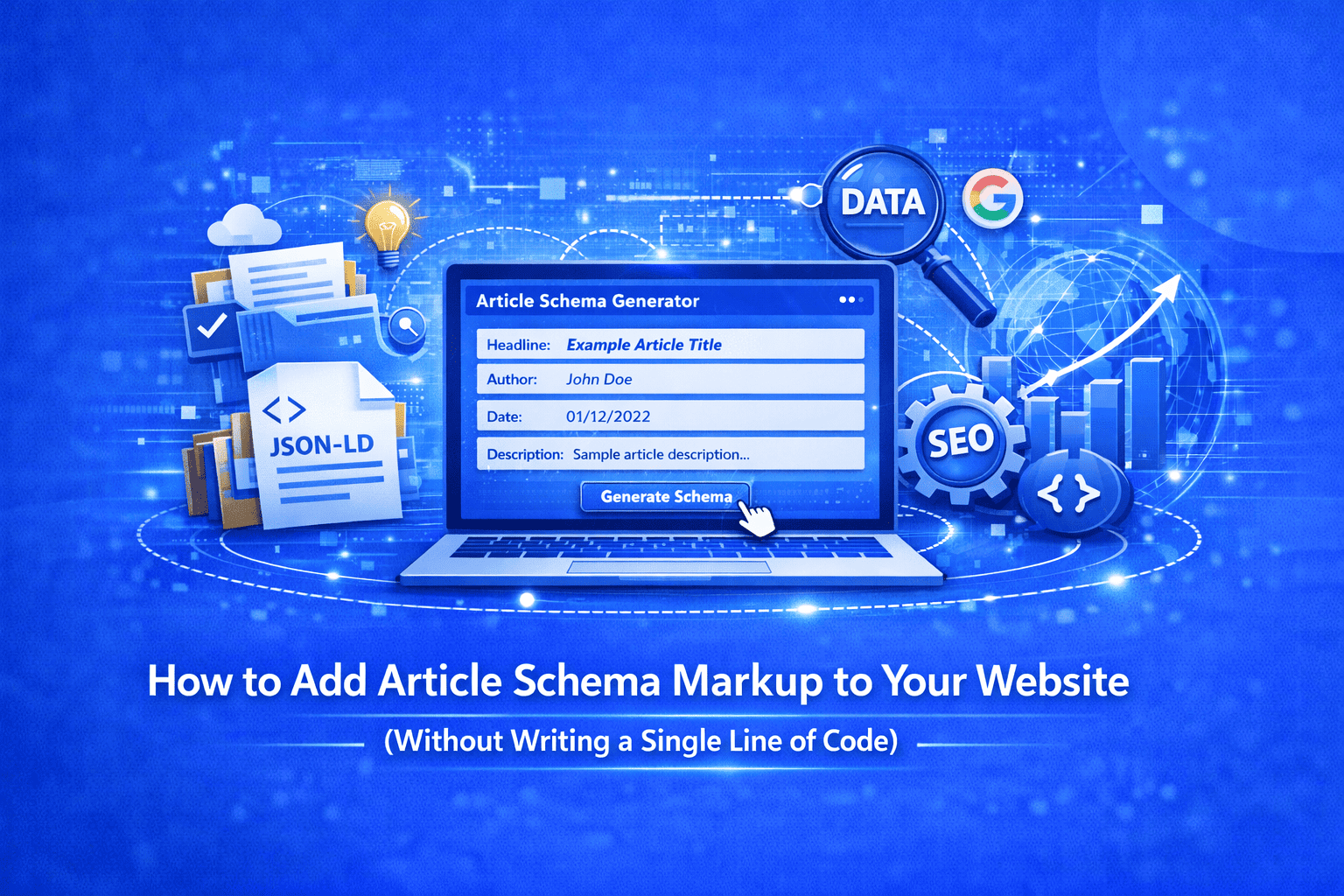
How to Add Article Schema Markup to Your Website (Without Writing a Single Line of Code)
Most bloggers and content marketers miss out on Google rich snippets simply because their articles lack structured data. The free Article Schema Generator at EveryWebTool solves this instantly just fill in your article details, click generate, and get ready-to-paste JSON-LD code in seconds, no coding skills required.
Why Your Articles Are Invisible to Google (And How to Fix It)
You published a well-researched article. You optimized your headings, added a meta description, and even built a few backlinks. Yet your content still doesn't stand out in Google search results. No author name displayed. No publication date. No eye-catching rich snippet. Just a plain blue link among thousands of others.
The missing piece is almost always structured data specifically, Article Schema markup. Without it, Google has to guess what your content is about, who wrote it, and when it was published. With it, search engines can confidently display rich results that earn significantly higher click-through rates than standard listings.
The problem is that writing JSON-LD structured data by hand is intimidating. It involves precise syntax, specific Schema.org properties, and zero room for error. A missing bracket or incorrect field name can break the entire markup. For beginners, marketers, and even many developers, this is a genuine barrier.
That's exactly the problem the Article Schema Generator at EveryWebTool was built to solve.
Why Manual Schema Markup Fails Most Users
Writing article structured data manually means understanding the Schema.org vocabulary, knowing which fields Google requires versus which are optional, formatting dates in the ISO 8601 standard, nesting publisher and image objects correctly, and validating the output before going live. One mistake and the entire schema is ignored by search engines or worse, it triggers a manual penalty.
Hiring a developer to do this for every article is expensive and slow. Using generic online guides means copying templates that may be outdated or non-compliant with Google's latest structured data guidelines. Neither approach scales well for a blog that publishes regularly.
The Better Solution: Article Schema Generator by EveryWebTool
The Article Schema Generator is a free, browser-based tool that creates fully compliant JSON-LD structured data for any article, blog post, or news piece in under a minute. It requires no account, no installation, and no technical knowledge. You simply fill in a form, click a button, and receive clean, Google-validated schema markup ready to paste into your website's HTML.
The tool follows Schema.org standards and Google's structured data guidelines, outputting the JSON-LD format that Google explicitly recommends over Microdata and RDFa.
How to Use the Article Schema Generator Step by Step
Using the tool is straightforward, even if you've never worked with structured data before.
Step 1 — Open the Tool Navigate to the Article Schema Generator on EveryWebTool. No sign-up or login is required.
Step 2 — Enter Your Article Headline Type your article's exact title in the Headline field. This should match the H1 heading on your page for maximum consistency.
Step 3 — Add Author and Publisher Details Enter the author's full name, then the name of your website or publication as the publisher. In the Publisher Logo URL field, paste the direct link to your site's logo image (ideally a 600×60px PNG or JPG hosted on your server).
Step 4 — Set Publication and Modification Dates Use the date-time picker to select when the article was originally published. If you've updated the content recently, add the modification date as well this signals content freshness to search engines and can improve your chances of appearing in Google's Top Stories.
Step 5 — Provide the Article Image URL Paste the direct URL of your article's featured image. Google requires a high-resolution image (at least 1200px wide) for the article to qualify for rich results.
Step 6 — Fill Optional Fields Add a brief article description and your article's canonical URL for more complete schema. These aren't required but improve how search engines interpret your content.
Step 7 — Generate and Copy Click "Generate Schema." Your JSON-LD code instantly appears in the preview panel. Click "Copy Code" to copy it to your clipboard.
Step 8 — Paste Into Your Website Place the copied code inside the <head> section of your article's HTML, between the <head> and </head> tags. In WordPress, you can use a plugin like Insert Headers and Footers or add it directly to your theme's header template. In other CMS platforms, paste it into the page's head section or a custom code block.
Step 9 — Validate Your Schema Test your implementation using Google's Rich Results Test tool (search.google.com/test/rich-results) by pasting your page URL. This confirms everything is working correctly.
Key Benefits of Using This Tool
- Completely Free: No hidden fees, no premium tiers, and no credits to purchase. Every feature is available at no cost.
- No Account Required: Start generating schema immediately without signing up or providing any personal information.
- Google-Compliant Output: The generated JSON-LD follows Schema.org standards and Google's latest structured data guidelines, so your markup won't be flagged or ignored.
- Instant Results: Schema is generated the moment you click the button no waiting, no processing delays.
- Beginner-Friendly Interface: The form-based approach removes all technical barriers. If you can fill out a contact form, you can generate article schema.
- Secure and Private: Your article data is not stored or transmitted to third parties. The tool runs in your browser without collecting sensitive information.
- Works for All Article Types: Blog posts, news articles, tutorials, guides, opinion pieces, press releases, and academic content are all supported under the Article schema type.
Real-World Use Cases
Content marketers at agencies use the tool to quickly generate schema for client blog posts before publishing, ensuring every article is structured data-ready from day one. Independent bloggers add JSON-LD to existing posts they want to rank better, especially those targeting competitive keywords where rich snippets can differentiate their listing.
News website editors use it to ensure articles include proper datePublished and dateModified fields, which are critical signals for Google News indexing. WordPress developers use the generated code as a base template to implement in custom themes, saving hours of manual coding. E-commerce brands running content marketing programs use it to mark up how-to guides and product review articles, improving both search visibility and click-through rates.
Even technical writers creating documentation and tutorials benefit from the tool, as structured data helps search engines surface instructional content more prominently in relevant queries.
Related Tools You May Also Need
Once your article schema is in place, consider strengthening your site's overall structured data strategy. The FAQ Schema Generator lets you add structured Q&A sections to your articles, which can appear directly in search results as expandable FAQ rich snippets. The Event Schema Generator is ideal if your content covers upcoming events, conferences, or webinars. And the Breadcrumb Schema Generator helps search engines display your site's navigation structure in search results, improving both user experience and click-through rates. All of these tools are available under EveryWebTool's SEO Tools category.
Start Getting the Rich Snippets Your Content Deserves
Structured data is no longer an advanced SEO technique reserved for developers. With the Article Schema Generator, any blogger, marketer, or content creator can implement Google-compliant schema markup in minutes for free, without writing a single line of code.
Every article you publish without schema markup is a missed opportunity to stand out in search results. Don't let your content get lost in a sea of plain blue links. Use the Article Schema Generator today and give Google exactly what it needs to showcase your work.
Share this article:
Frequently Asked Questions
Article Schema is structured data markup that tells search engines key facts about your content — including the headline, author, publisher, publish date, and featured image. Adding it to your articles makes them eligible for rich snippets in Google search results, which display additional information beyond the standard title and meta description. This typically leads to higher visibility and better click-through rates compared to plain search listings.
Yes, completely. The tool is 100% free with no hidden costs, subscription plans, or usage limits. You don't even need to create an account. Simply open the tool, fill in your article details, generate the schema, and copy the code — all at no charge.
Your data is secure. The tool processes your inputs in the browser to generate the JSON-LD code and does not store, transmit, or share your article information with any third parties. You can use it confidently without privacy concerns.
The generated JSON-LD code should be placed inside the <head> section of your article's HTML page, between the opening <head> and closing </head> tags. In WordPress, plugins like Insert Headers and Footers or WPCode make this easy without editing theme files directly. In website builders like Wix or Squarespace, use the custom code or header injection option in your page settings.
Absolutely. The Article schema type covers all forms of written content — blog posts, tutorials, how-to guides, opinion pieces, reviews, and press releases. If you publish any form of written content online and want better search visibility, this tool applies to your use case.
Structured data is not a direct ranking factor, but it helps Google better understand and display your content. Articles with proper schema markup are eligible for rich snippets, which appear more prominently in search results and typically earn higher click-through rates. Over time, improved click-through rates can contribute positively to your overall SEO performance. Use Google's Rich Results Test after implementation to confirm your schema is valid and recognized.

Related Articles
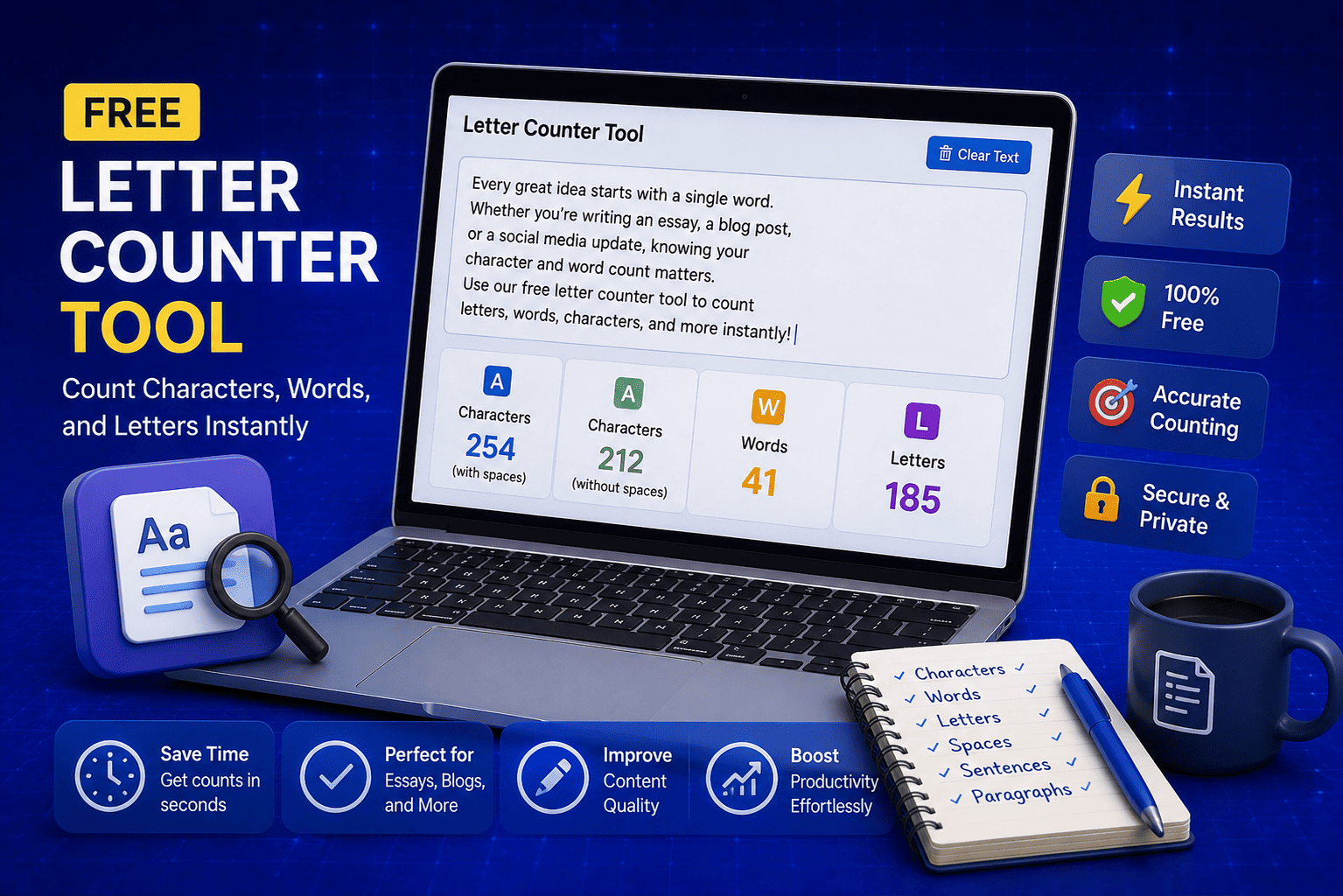
Free Letter Counter Tool: How to Count Characters, Words, and Letters Instantly
Most people do not think about character counts until they absolutely have to. Your tweet gets rejected for being too long. Your Meta description gets cut off in Google search results. Your college application essay goes over the limit and you have no idea by how much. These are the moments when a free letter counter tool becomes genuinely useful. The good news is you do not need a complicated piece of software or a paid subscription to count letters, characters, and words accurately. A free online tool does it all instantly, in real time, right in your browser. In this guide, I am going to show you exactly what a letter counter tool does, who needs it, and how to use it to get accurate text statistics in seconds.
Read Article
How to Check Your Domain DNS Health for Free and Fix Issues Fast
Most website owners set up their domain once and never look at the DNS settings again. Everything seems fine until emails stop delivering, the website goes down after a hosting change, or Google flags the domain for missing security records. By that point the damage is already done. A quick domain DNS health check takes less than thirty seconds and tells you exactly whether your DNS records are correctly configured or quietly causing problems you have not noticed yet. In this guide I am going to show you exactly how to run a free DNS health check on any domain, what the results mean, and what to do if something needs fixing.
Read Article
How to Create a Fake Instagram Post Online Without Any App or Software
If you have ever searched for a way to create a fake Instagram post online, you already know how hard it is to find a tool that actually works well. Most options are either too complicated, full of watermarks, or ask you to download software you never wanted in the first place. The good news is you do not need any of that. A free online fake Instagram post generator lets you create a realistic looking Instagram post right in your browser, in under two minutes, with no app, no login, and no design skills required. Whether you need it for a school project, a marketing mockup, or just for fun with friends, this guide will show you exactly how to do it step by step.
Read Article