Do Not Need a Developer to Add Organization Schema Markup to Your Website
I have worked with dozens of websites over the years and one thing I notice almost every time is the same mistake. Site owners put real effort into their content, their design, and their page speed but they completely ignore one small thing that tells Google exactly who they are. That thing is organization schema markup. The good news is you do not need to be a developer to add it. You do not need to touch a single line of code. A free tool handles everything for you in under five minutes and I am going to show you exactly how to use it.
What Is Organization Schema Markup?
Let me explain this in the simplest way possible because I have seen a lot of confusing definitions out there that make this sound harder than it actually is.
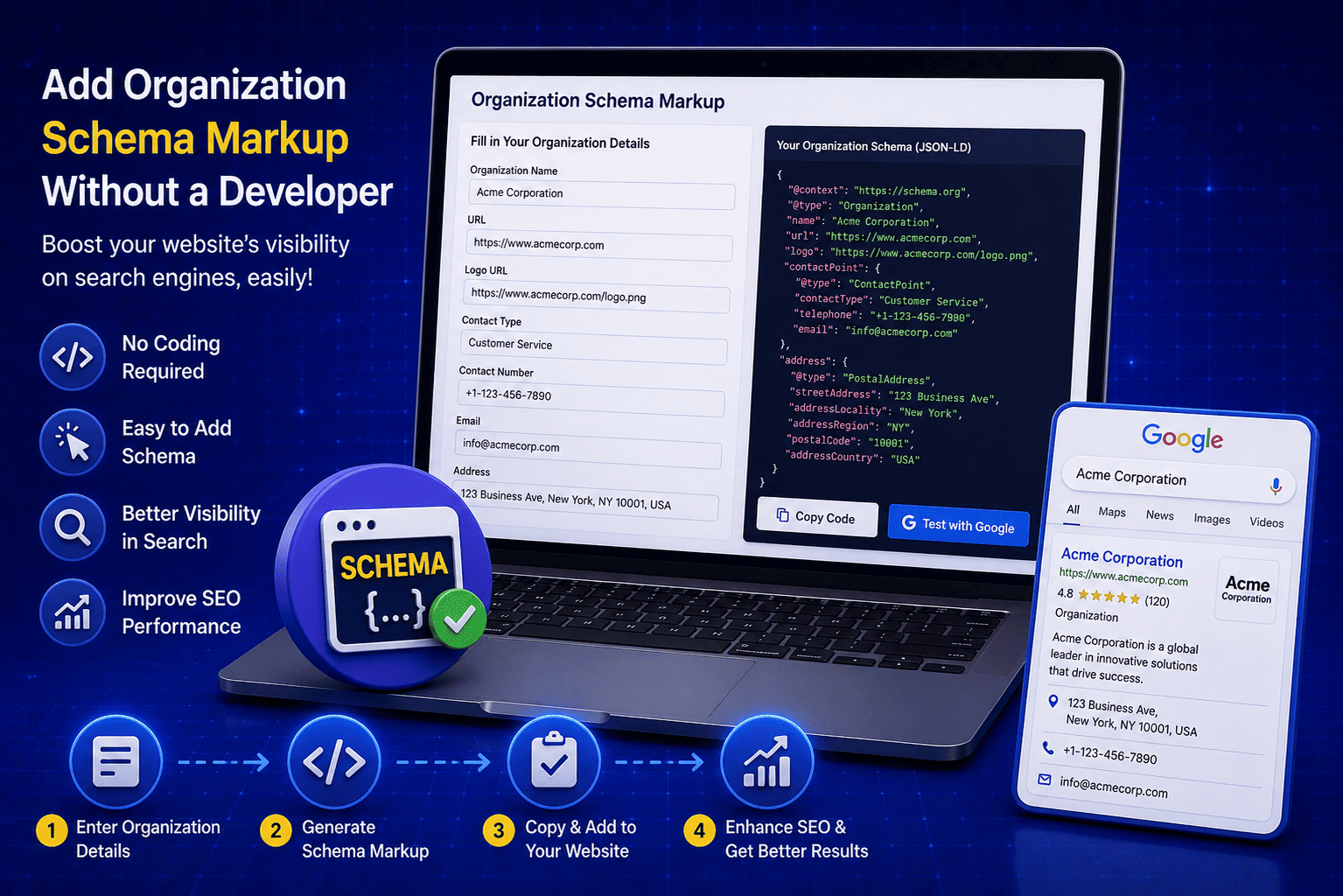
Organization schema markup is structured data that you add to your website to tell search engines the key details about your business. It follows a standard vocabulary defined by schema.org, which is a project backed by Google, Bing, Yahoo, and Yandex. So when you add this markup, every major search engine understands it.
The code itself is written in a format called JSON-LD (JavaScript Object Notation for Linked Data). Your website visitors never see it. It sits quietly inside your HTML and works in the background, feeding accurate business information directly to search engines.
Here is what organization schema markup typically contains:
- Your business name and website URL
- Your logo image
- A short business description
- Your phone number and email address
- Your physical address
- Your social media profile links
Once search engines have all of this information in a clean, structured format, they stop guessing and start showing your business correctly in search results. If you want to explore more tools that help with this kind of SEO work, check out the free SEO tools on EveryWebTool.com.
Why Your Website Needs Organization Schema in 2026
Honestly, I was surprised when I first realized how many business websites are still missing this. Google is not going to call you and ask for your business details. It crawls your pages, tries to piece together who you are, and sometimes gets it completely wrong.
I have seen websites where Google was showing outdated information in search results simply because there was no structured data telling it otherwise. That is the kind of thing that quietly hurts your brand without you even realizing it.
When you add organization schema markup, you take control of how your business appears in search. You stop leaving things to guesswork and start giving Google exactly what it needs. The impact becomes very clear when you look at both situations together:
|
Feature |
With Organization Schema |
Without Organization Schema |
|
Google Knowledge Panel |
Appears with accurate business info |
May never appear or show wrong data |
|
Business logo in search |
Displays correctly |
Rarely shown |
|
Rich snippets |
More likely to trigger |
Very unlikely |
|
Local SEO signals |
Strong and clear |
Weak or missing |
|
Brand trust in search |
Higher click-through rate |
Lower visibility and trust |
|
AI search appearances |
More likely to be cited |
Often ignored by AI results |
The difference is real and in 2026, with AI-powered search growing faster than ever, having clean structured data on your website is no longer optional. It is one of the smartest low-effort moves you can make for your site right now.
Organization Schema vs. Local Business Schema
This is a question I get quite often and I completely understand the confusion. Both of these schema types live under the same schema.org vocabulary but they are not the same thing and using the wrong one can mean missing out on search features that actually matter for your business type.
Here is how I explain it to people. Organization schema is the general type. It works for any online brand, agency, software company, or content website. Local Business schema is a more specific version that includes extra properties like opening hours, price range, and geo-coordinates. It is designed for businesses that have a physical location customers actually visit.
So if you run a restaurant, a dental clinic, or a retail store, Local Business schema is the better fit. If you run an online business, a digital agency, or a SaaS product, Organization schema is exactly what you need.
Use this table to quickly figure out which one suits your situation:
|
Factor |
Organization Schema |
Local Business Schema |
|
Business type |
Online brands, agencies, corporates |
Restaurants, clinics, retail stores |
|
Physical address required |
No |
Yes |
|
Opening hours support |
No |
Yes |
|
Price range property |
No |
Yes |
|
Google Maps visibility |
Limited |
Strong |
|
Best for new websites |
Yes |
Only if location based |
One more thing worth knowing: Local Business schema is actually a subtype of Organization schema. So everything you set up with Organization schema today becomes the foundation you build on later if you ever need to expand.
How to Create Organization Schema Without Coding (Step by Step)
This is the part I enjoy showing people the most because the reaction is almost always the same. They expect something complicated and then they realize it takes less time than making a cup of tea. Let me walk you through every step.
Step 1: Open the Free Organization Schema Generator
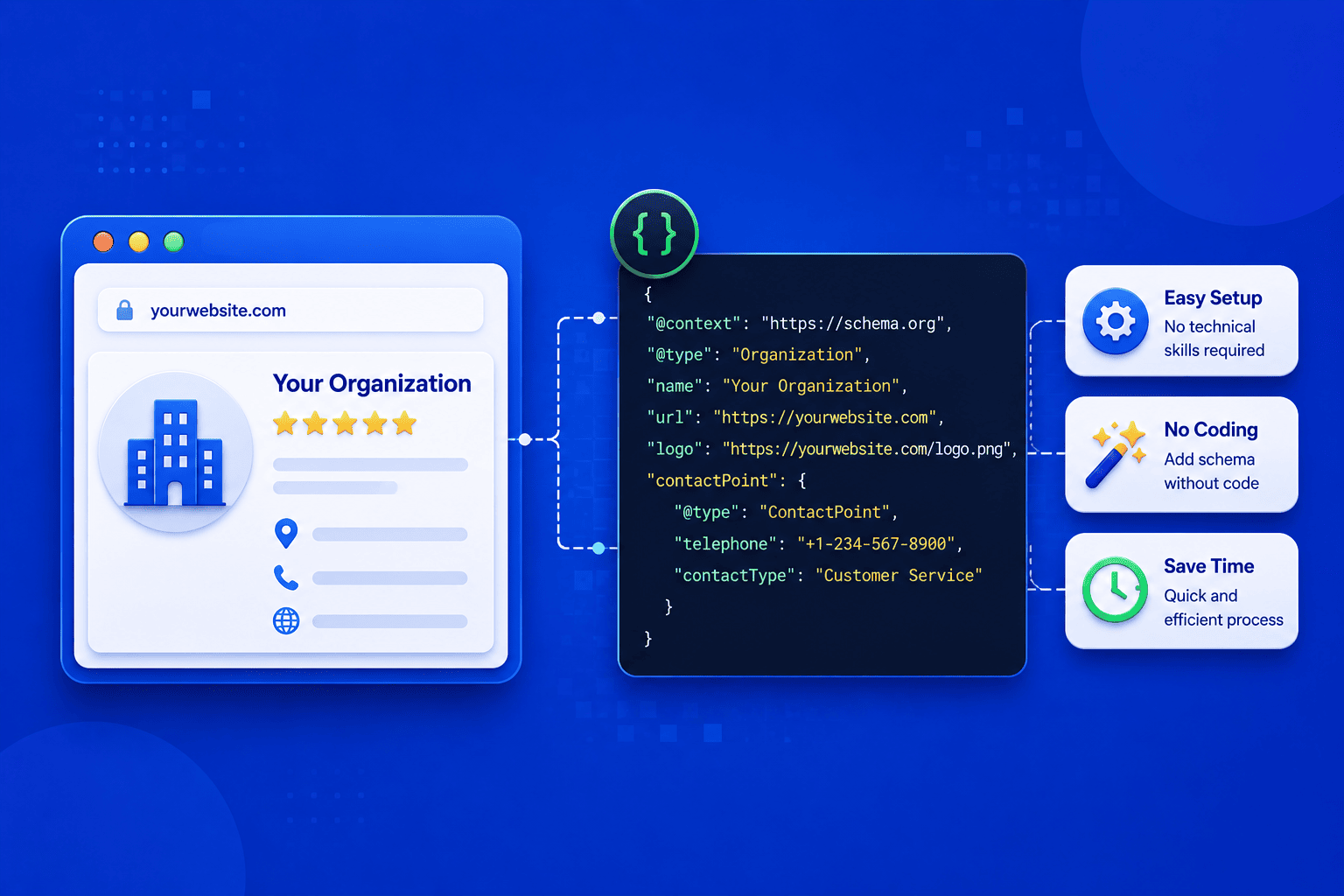
Go to the Organization Schema Generator on EveryWebTool.com. No account needed, no sign up, no subscription. The tool is completely free and opens instantly in your browser.
Step 2: Enter Your Organization Details
You will see a clean form with clearly labeled fields. Start with the two required fields first.
- Organization Name: Enter your business name exactly as it appears on your website and Google Business Profile. Consistency matters here because Google cross references this information.
- URL: Enter your full website address including https://
- Logo URL: Paste the direct link to your logo image file hosted on your website
- Description: Write one to two sentences describing what your business does. Keep it factual and clear.
Step 3: Add Contact Information
Fill in your phone number and email address in the contact section. Use the exact same details that appear on your website contact page. I always recommend double checking this because mismatched contact information across your site and schema can confuse search engines.
Step 4: Enter Your Business Address
Complete the address fields including street address, city, state or region, postal code, and country. If your business operates fully online with no physical location, you can skip this section. But if you have a physical address, fill it in completely because it strengthens your local SEO signals significantly.
Step 5: Add Your Social Media Profile Links
In the social media section, paste your profile URLs one per line. Include every active platform your business uses such as LinkedIn, Facebook, Twitter/X, Instagram, and YouTube. These links populate the sameAs property in your schema which is one of the strongest signals Google uses to confirm your business identity across the web.
Step 6: Generate and Copy the Code
Once all your details are filled in, click the Generate Schema button. The tool instantly produces clean and correctly formatted JSON-LD code in the preview panel. Click the Copy button to copy the entire code block.
Step 7: Add the Code to Your Website
Now paste the copied code into the head section of your website HTML. Here is how to do it on the most common platforms:
- WordPress: Use a free plugin like WPCode or Insert Headers and Footers. Paste the code in the header section. No theme file editing needed.
- Shopify: Go to Online Store, then Themes, then Edit Code. Open theme.liquid and paste the code just before the closing head tag.
- Squarespace: Go to Settings, then Advanced, then Code Injection. Paste the code in the Header field.
- Custom HTML site: Open your main HTML file and paste the code anywhere inside the head tags.
After publishing, go to Google's Rich Results Test, enter your website URL, and run a quick check to confirm your schema is being read correctly.
Common Mistakes to Avoid With Schema Markup
After helping many website owners with their structured data, I have noticed the same errors coming up again and again. These mistakes are easy to make but they are also easy to avoid once you know what to look for.
- Using an inconsistent business name: If your schema says "Acme Digital" but your Google Business Profile says "Acme Digital Agency", Google struggles to connect the two. Use your exact official business name everywhere without any variation.
- Broken or incorrect logo URL: I have seen this one more times than I can count. The logo field needs a direct link to an image file that is publicly accessible. Test the URL in a private browser tab before adding it to your schema.
- Adding schema only to the homepage: Google can land on any page of your site first. I always recommend adding your organization schema markup globally so it appears on every page. Most CMS platforms let you do this through a header injection setting.
- Leaving social media links outdated: If you launched a new YouTube channel or rebranded your Twitter account, update your schema too. Outdated sameAs links weaken the entity signals you worked hard to build.
- Never validating after publishing: A lot of people generate the code, paste it in, and never check if it actually works. Always run your URL through Google's Rich Results Test after adding any structured data to your site.
- Skipping other schema types: Organization schema is a great starting point but it works even better when combined with other types. For example adding a Breadcrumb Schema Generator to your site helps Google understand your site structure and improves how your pages appear in search results.
What Other Schema Types Should You Add Next?
Organization schema markup is the foundation but think of it as the first brick, not the entire building. Once it is in place, adding more schema types on top of it builds a much stronger structured data presence across your whole website. This is what separates sites that occasionally show rich results from sites that consistently dominate search appearances.
From my own experience working on different types of websites, here are the schema types I recommend adding right after your organization schema is live:
- Breadcrumb Schema: This helps Google understand the structure and hierarchy of your website pages. It also displays a clean navigation path directly in search results which improves click-through rates noticeably. You can generate it instantly using the Breadcrumb Schema Generator on EveryWebTool.com.
- Event Schema: If your business runs webinars, workshops, or any kind of online or offline events, this schema type gets them listed directly in Google's event search results. The Event Schema Generator makes the whole process very simple.
- HowTo Schema: If you publish tutorial or guide content on your blog, HowTo schema can trigger step-by-step rich results directly inside the search page. This is one of the best schema types for content-heavy websites.
- Video Schema: If your website features video content, adding video schema helps Google index and display your videos as rich results with thumbnails and duration information.
Each of these schema types takes only a few minutes to generate using the free tools available on EveryWebTool.com. The more structured data signals you give Google, the better it understands your entire website.
Final Thoughts
Organization schema markup is one of those things that takes very little time to set up but keeps working for your website long after you hit publish. I have seen it help businesses show up with cleaner search appearances, stronger brand signals, and more accurate information across Google results.
You do not need a developer. You do not need to learn JSON-LD. All you need is five minutes and the right tool. Head over to the free Organization Schema Generator on EveryWebTool.com, fill in your details, copy the code, and paste it into your website. That is honestly all there is to it.
Share this article:
Frequently Asked Questions
Not directly. Google has confirmed that schema markup is not a direct ranking factor. What it does is help your business appear more completely and accurately in search results. Better search appearances lead to higher click-through rates and that indirectly contributes to stronger overall SEO performance over time.
Yes, always. If your phone number, address, logo, or social media profiles change, update your schema markup straight away. Outdated structured data can cause Google to display wrong business information in search results which damages trust with potential visitors.
Yes you can. After generating your JSON-LD code using the free Organization Schema Generator, simply paste it into the header section of your theme using the WPCode plugin. It takes less than two minutes and requires zero coding knowledge.
Go to Google's Rich Results Test at search.google.com/test/rich-results, enter your website URL, and run the test. It will show you whether your organization schema markup is detected correctly and highlight any errors that need fixing.

Related Articles
Free Letter Counter Tool: How to Count Characters, Words, and Letters Instantly
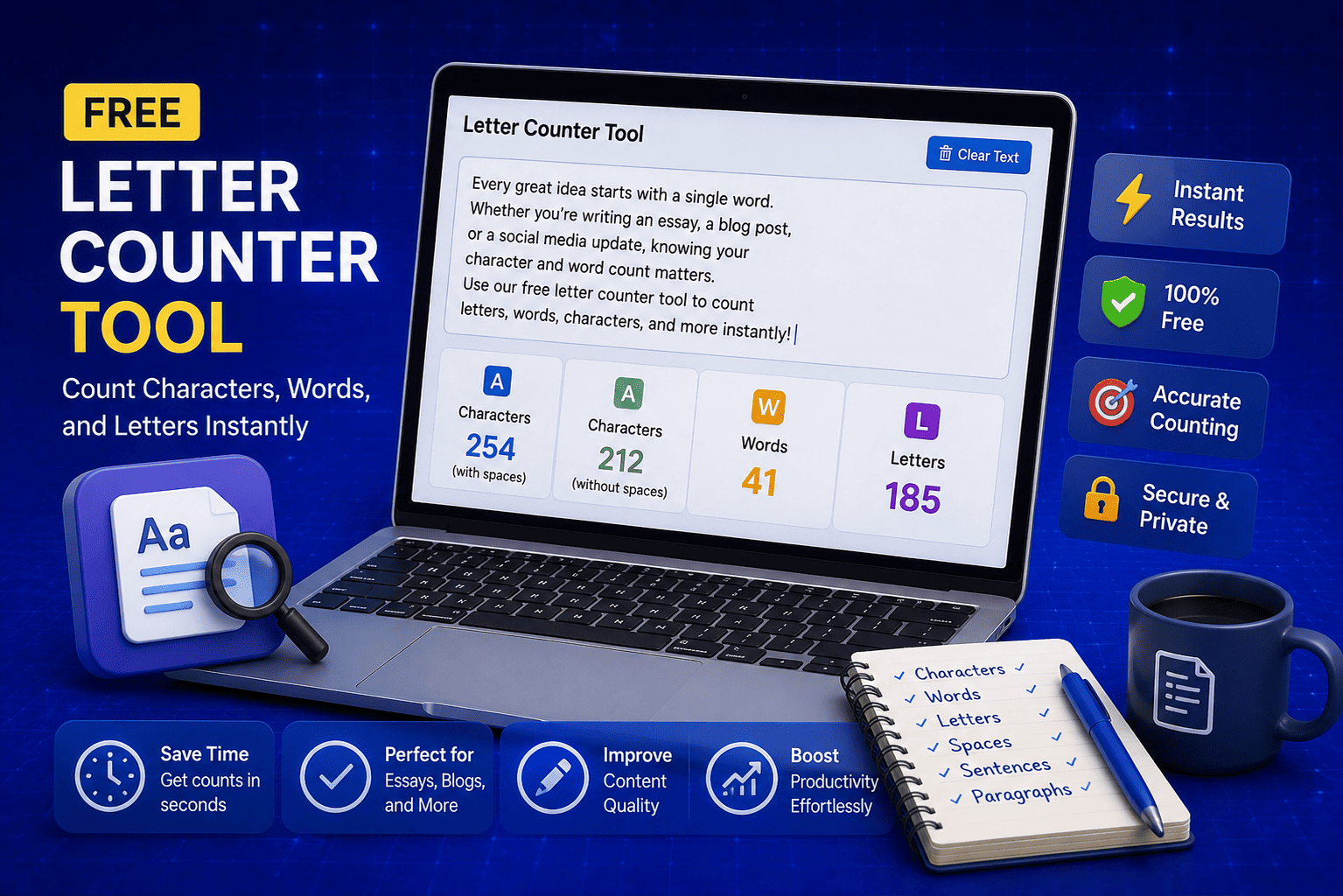
Most people do not think about character counts until they absolutely have to. Your tweet gets rejected for being too long. Your Meta description gets cut off in Google search results. Your college application essay goes over the limit and you have no idea by how much. These are the moments when a free letter counter tool becomes genuinely useful. The good news is you do not need a complicated piece of software or a paid subscription to count letters, characters, and words accurately. A free online tool does it all instantly, in real time, right in your browser. In this guide, I am going to show you exactly what a letter counter tool does, who needs it, and how to use it to get accurate text statistics in seconds.
Read Article
How to Check Your Domain DNS Health for Free and Fix Issues Fast
Most website owners set up their domain once and never look at the DNS settings again. Everything seems fine until emails stop delivering, the website goes down after a hosting change, or Google flags the domain for missing security records. By that point the damage is already done. A quick domain DNS health check takes less than thirty seconds and tells you exactly whether your DNS records are correctly configured or quietly causing problems you have not noticed yet. In this guide I am going to show you exactly how to run a free DNS health check on any domain, what the results mean, and what to do if something needs fixing.
Read Article
How to Create a Fake Instagram Post Online Without Any App or Software
If you have ever searched for a way to create a fake Instagram post online, you already know how hard it is to find a tool that actually works well. Most options are either too complicated, full of watermarks, or ask you to download software you never wanted in the first place. The good news is you do not need any of that. A free online fake Instagram post generator lets you create a realistic looking Instagram post right in your browser, in under two minutes, with no app, no login, and no design skills required. Whether you need it for a school project, a marketing mockup, or just for fun with friends, this guide will show you exactly how to do it step by step.
Read Article